"Connected, no internet" means your phone or laptop is talking to the router fine — but the router cannot reach the internet, or your device is being blocked on the way. That distinction matters: the fix is rarely a new package. Work through the steps in order; note which step fixes it, so you know the cause next time.
1. Check if it is one device or every device
Test a second phone or laptop on the same Wi-Fi. All devices have no internet → the problem is the line or router (go to steps 5–8). Only one device → its settings are the problem (steps 2–4 will fix most cases).
2. Forget the network and reconnect (single device)
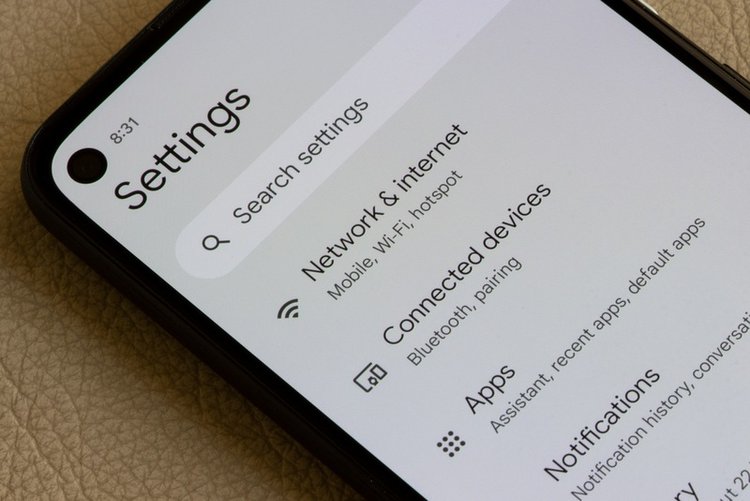
On the problem device: Settings → Wi-Fi → tap your network → Forget, then reconnect and type the password again. This clears a corrupted saved profile — the top fix for a phone that worked yesterday on the same Wi-Fi.
3. Turn off VPN, private DNS and data-saving modes
A disconnected or misconfigured VPN silently kills internet while Wi-Fi shows connected — turn it off completely and test. On Android also check Settings → Network → Private DNS: set it to Automatic (a dead custom DNS gives exactly this symptom). On laptops, disable any proxy in network settings unless your office set it.
4. Fix the date and time on the device
A phone or laptop with a wrong date/time (after a dead battery or manual change) fails secure connections and looks like "no internet". Set Date & time to Automatic in settings and restart the browser/app you were testing.
5. Restart the router and the fibre/DSL device properly
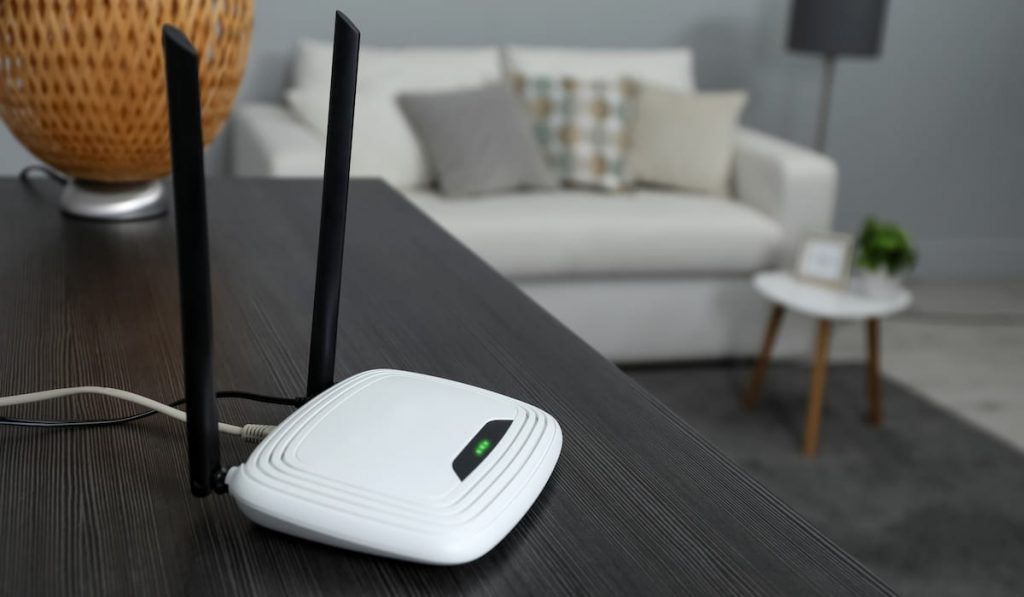
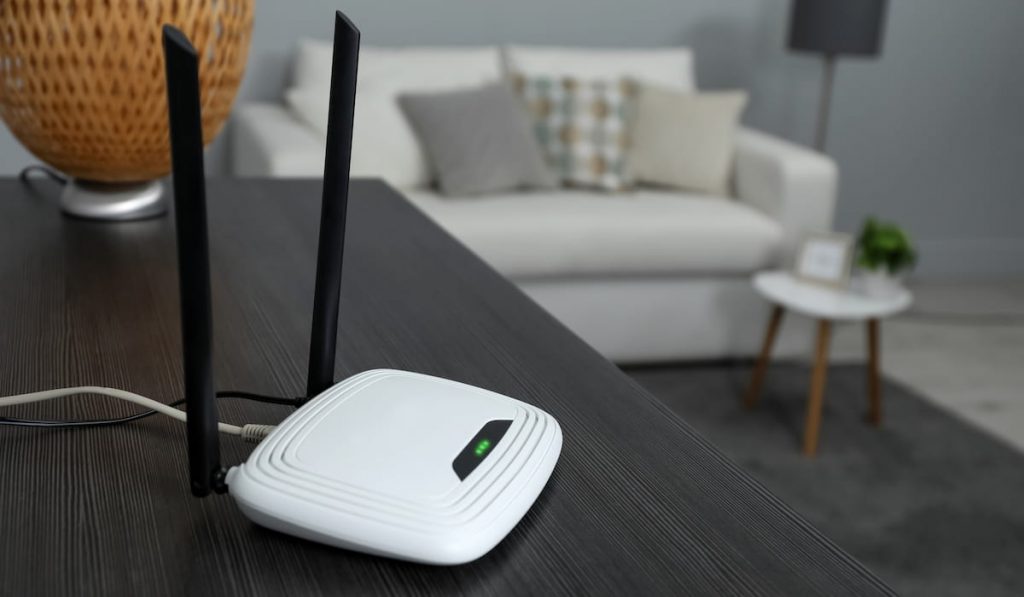
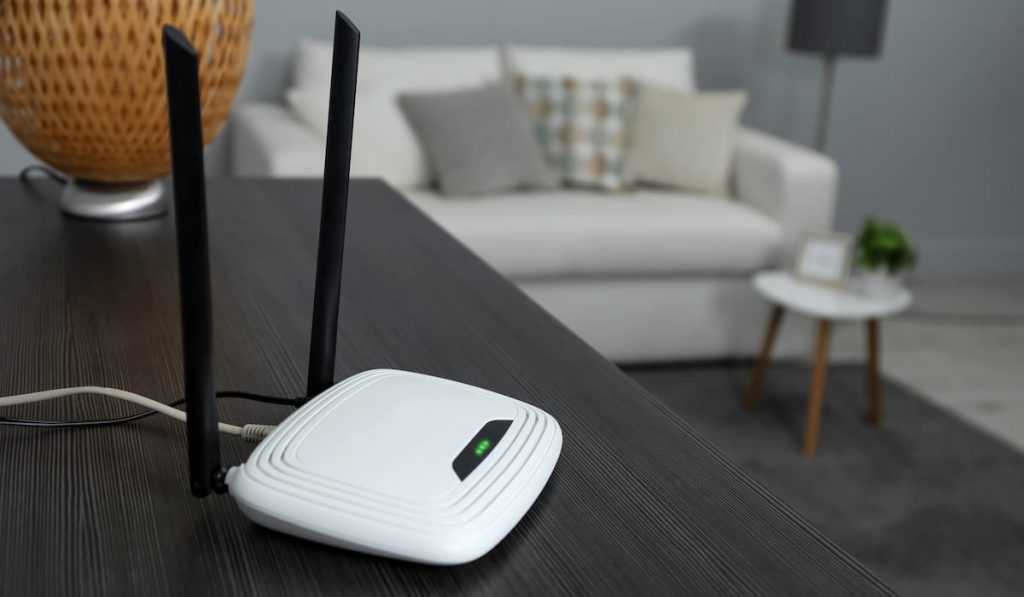
Unplug the router (and the separate fibre ONT / DSL modem if you have one) for a full 30 seconds. Plug the modem/ONT in first, wait for its lights to stabilise (2–3 minutes), then the router. Half of all "no internet" calls end at this step — devices left on for months hang like any computer.
6. Read the router lights — especially the red one
A red or blinking LOS / Internet / WAN light means the line itself is down — a cut fibre, an exchange fault, or a disconnected cable. Check the fibre/DSL cable is firmly seated; if LOS stays red, no setting will fix it — call your provider and tell them exactly that ("LOS light is red"), which skips their basic script.
7. Check the bill and the MAC / device limit
An unpaid or expired package often leaves Wi-Fi "connected" with a provider login/block page behind it — open any website in a browser and look for your provider page instead of the site. Also, some connections limit device count or bind to one router MAC address: if you changed your router recently and nothing works, the provider may need to register the new router — one call fixes it.
8. Reset network settings on the stubborn device
If one device still refuses: Android Settings → System → Reset → Reset Wi-Fi, mobile & Bluetooth; iPhone Settings → General → Transfer or Reset → Reset Network Settings; Windows Settings → Network & internet → Advanced → Network reset. You will need to rejoin Wi-Fi networks afterwards — saved passwords are wiped — but corrupted network stacks do not survive this.
Frequently asked questions
Why does Wi-Fi show connected but no internet only at night?
Usually line congestion or a provider fault in peak hours, or a neighbour-heavy channel problem on the router side. Test at different times for two days; if it is always the same evening hours, report it to the provider with the timings — and see our Wi-Fi speed guide for the channel fix.
My phone works on this Wi-Fi but my laptop does not. Why?
Then the line is fine and the laptop is the problem: check its VPN/proxy, date and time, and run Windows Network reset (step 8). An expired antivirus/firewall trial blocking traffic is another classic laptop-only cause.
The router Internet light is green but still no internet. What now?
Green light plus no access on all devices often means a provider-side account/session problem (expired package, stuck session). Restart as in step 5; if it persists, call the provider and ask them to refresh your session/account status — this is fixed from their side.