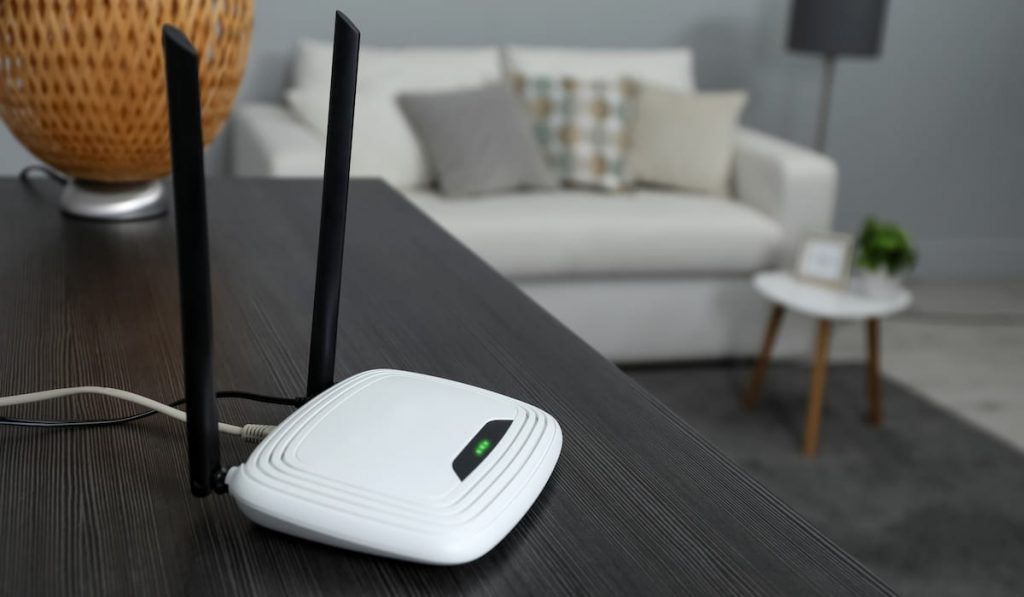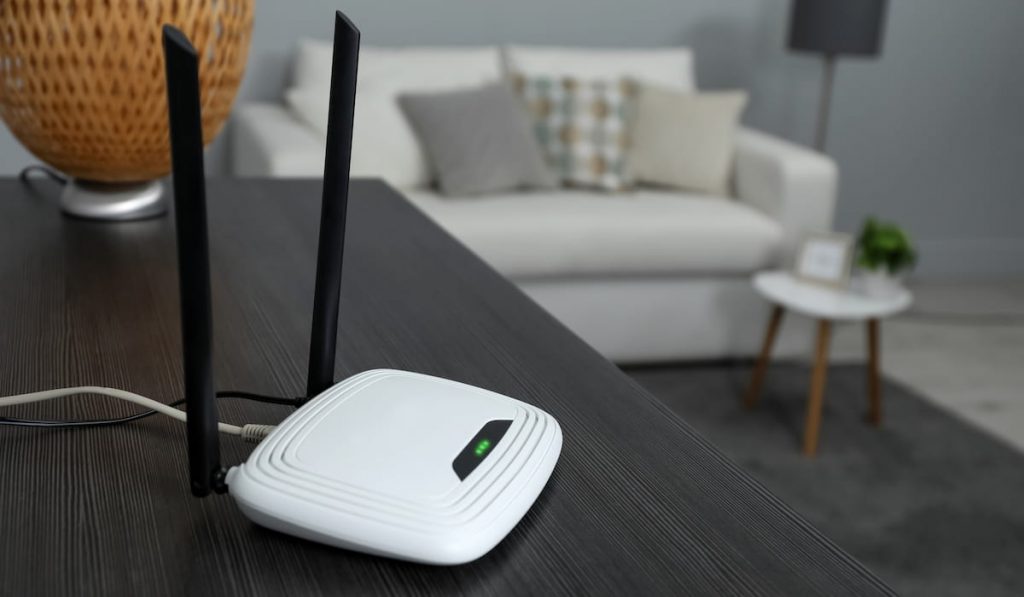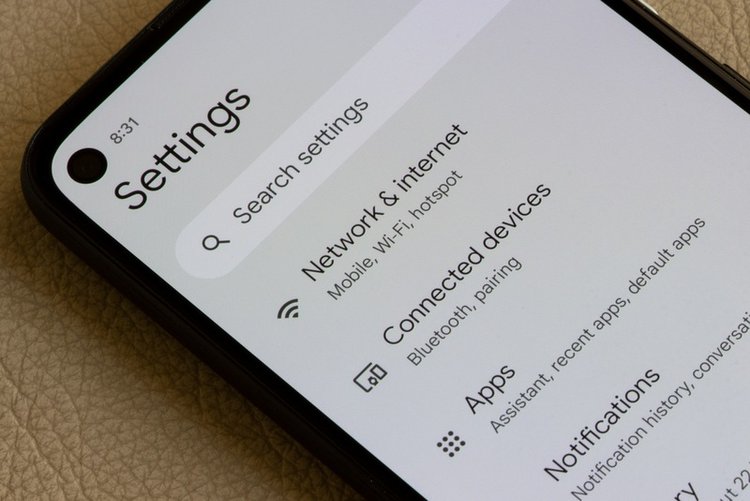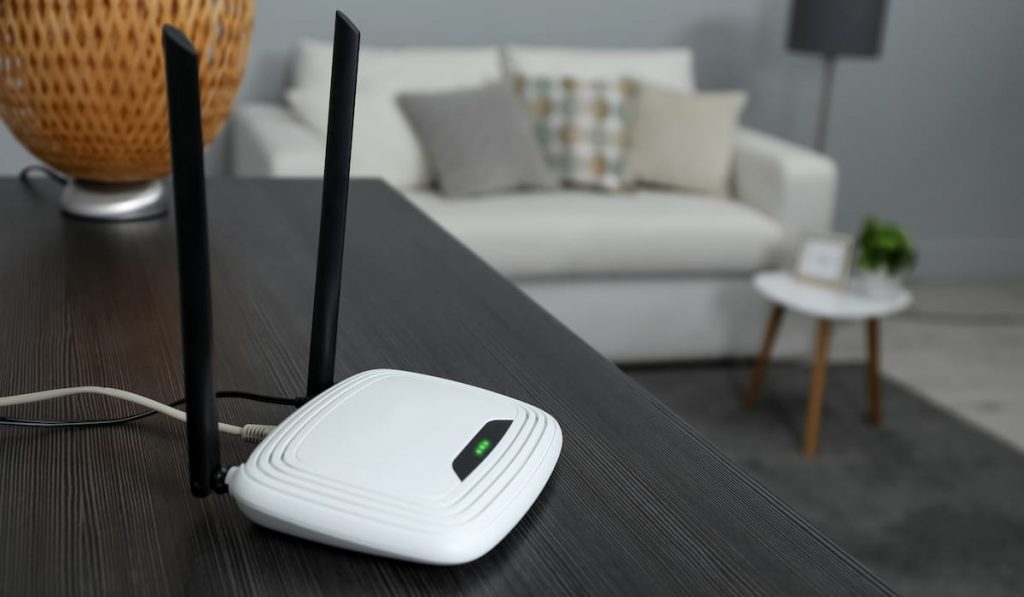
Sharing your Wi-Fi password once at a family gathering can mean twenty devices still connected a year later. Changing the password kicks everyone off and is the correct fix — here is the safe way, for almost any home router including PTCL, StormFiber, Nayatel and Transworld connections.
Before you start
Connect the device you are using to the router by Wi-Fi or cable and keep it next to you. Changing the password will disconnect every device, including TVs and cameras — reconnect them afterwards with the new password.
1. Open the router settings page
In your browser address bar type your router gateway address — most commonly 192.168.1.1 or 192.168.0.1 (it is printed on the sticker under the router, along with the admin username and password). Log in with those admin details — they are different from your Wi-Fi password.
2. Find Wireless / WLAN security settings
Look for Wireless → Wireless Security / WLAN → Security. You will see separate sections for the 2.4 GHz and 5 GHz networks — change the password on both if you use both.
3. Set a strong new password
- Security mode: WPA2-PSK or WPA2/WPA3 mixed — never WEP or Open.
- Password: at least 12 characters mixing words and numbers — easy for family to type, hard to guess. Avoid your name, phone number or house number.
- Optionally change the Wi-Fi name (SSID) too if the old name identifies your home.
Save / Apply. The router restarts its Wi-Fi — reconnect with the new password.
4. Also change the router admin password
If the admin login is still the printed default, change it in System / Management → Password after you log in, and note it somewhere safe at home. Anyone on your Wi-Fi who can guess a default admin password can control your router.
Frequently asked questions
I forgot the router admin password. What can I do?
Try the printed sticker details first. If they were changed and forgotten, contact your internet provider — a factory reset restores defaults but also wipes the connection setup, so provider guidance matters.
Will changing the password disconnect freeloaders?
Yes. Every device must reconnect with the new password, so anyone you do not give it to stays off. Check the router device list a day later to confirm only your devices are back.
Should the 2.4 GHz and 5 GHz passwords be the same?
Using the same strong password on both bands is normal and convenient for home use. What matters is that it is strong and the security mode is WPA2 or WPA3.