"App keeps stopping" — few phone problems are more annoying, especially when it is WhatsApp or your banking app. Crashes come from a bad update, corrupted cache, low storage, or a system component failing — not usually from a broken phone. Fix them in this order and stop at the step that works.
1. Restart the phone
Yes, first again: a restart clears stuck processes and temporary memory. A surprising share of "app keeps crashing since today" problems end here, especially after many days without a restart.
2. Update the app — and check if everyone has the same crash
Open Play Store → Manage apps & device and update the crashing app. If the crash started right after an update, the developer likely already knows — check the app recent reviews: hundreds of "crashing after update" comments mean waiting a day or two for the fix update is the real answer, not resetting your phone.
3. Clear the app cache (safe)
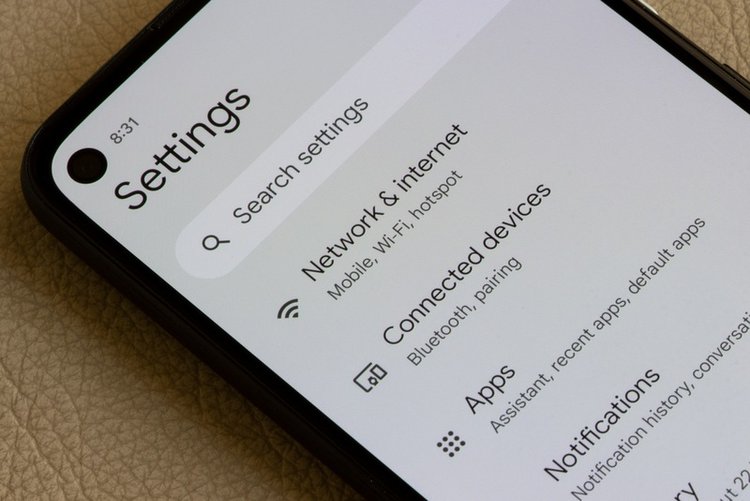
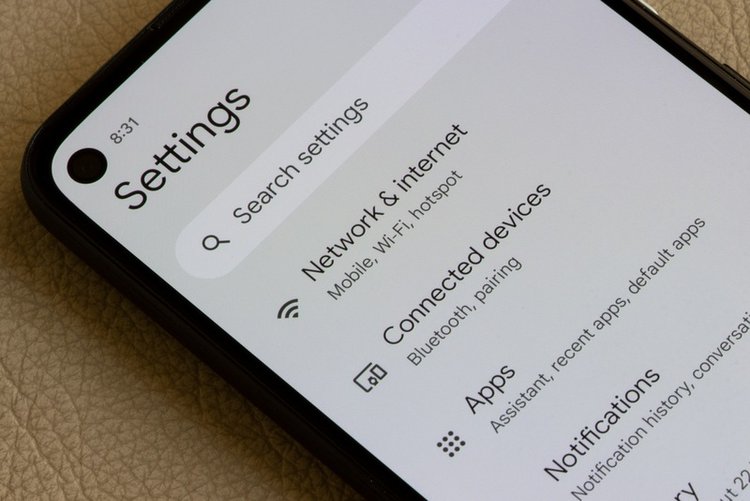
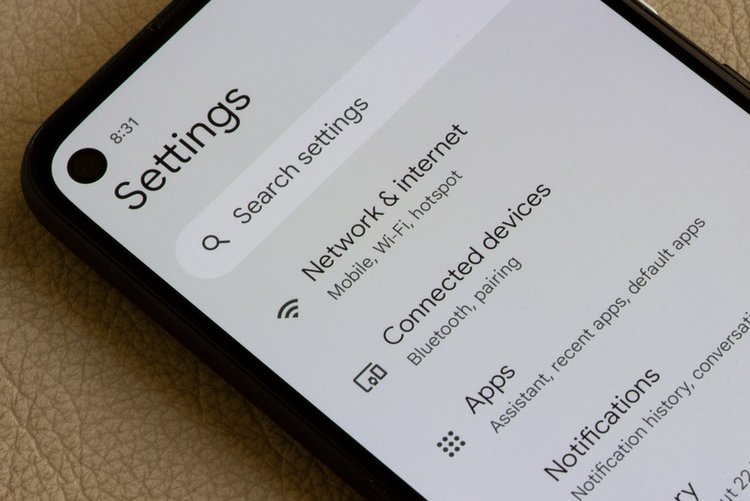
Settings → Apps → (the app) → Storage & cache → Clear cache. Corrupted temporary files are the most common single-app crash cause. Your account, chats and data are not deleted by clearing cache.
4. Update Android System WebView and Chrome
When many apps crash on the same day — Gmail, banking apps, news apps together — the culprit is usually Android System WebView, the component apps use to show web content. In Play Store, search "Android System WebView" and "Google Chrome" and update both, then restart. This exact bug has hit Android worldwide more than once.
5. Free up storage — apps crash below 1 GB free
Apps need working space to open and save data. Under roughly 1 GB free, crashes and freezes multiply. Check Settings → Storage; if it is nearly full, clear caches and WhatsApp media first — our full storage guide walks through it without deleting photos.
6. Check app permissions after an update
An app denied a permission it now requires can crash on opening. Settings → Apps → (app) → Permissions — allow the obvious ones for its job (Storage/Files for a gallery app, Camera for a scanner). Deny anything unrelated; if it still crashes with correct permissions, move on.
7. Clear app data — only with a backup (last single-app step)
Storage & cache → Clear storage resets the app like a fresh install — you will log in again and local data is wiped. For WhatsApp, take a chat backup first (Settings → Chats → Chat backup). For games, confirm progress is saved to Google Play Games / Facebook before doing this.
8. Uninstall updates or reinstall the app
Still crashing? Uninstall the app and reinstall it fresh from the Play Store. For built-in apps that cannot uninstall: app info → three dots → Uninstall updates, then update again from Play Store — this replaces a corrupted update cleanly.
9. Test in Safe Mode, then consider updates/reset
Boot into Safe Mode (long-press Power off → Safe mode). If the crashing stops there, another downloaded app is interfering — uninstall your newest apps one by one. If crashes continue everywhere, install pending system updates; a factory reset (with full backup) is the final step before suspecting hardware.
Frequently asked questions
Why did all my apps start crashing on the same day?
That pattern almost always means a shared system component — usually Android System WebView — or a system update issue, not your individual apps. Update WebView and Chrome from the Play Store and restart (step 4).
Will clearing cache log me out of the app?
No. Clearing cache removes temporary files only; you stay logged in. Clearing storage/data does log you out and resets the app — that is why it is step 7, with a backup warning.
One game crashes only on my phone, fine on others. Why?
Likely your phone is short on RAM or storage for that game, or its data is corrupted. Free space, clear its cache, lower the game graphics settings, and close other apps before playing. Older phones with 3–4 GB RAM struggle with the heaviest new games.