"Download pending" that never ends, downloads stuck at 95%, or apps that refuse to install — Play Store problems look serious but are usually a jammed update queue, too little free storage, or corrupted temporary data in the Play Store app itself. Here is the order that fixes them fastest.
1. Cancel the queue jam first
Play Store downloads one thing at a time. If a big game update is sitting in the queue, your small app waits behind it forever. Open Play Store → your profile picture → Manage apps & device and look at what is actually downloading. Cancel the stuck or unimportant items, then start your download again.
2. Switch the connection and turn off VPN
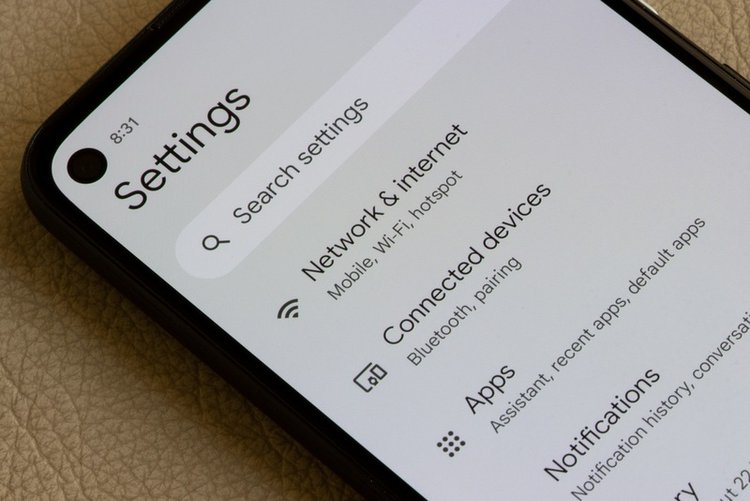
Pause and retry on a different connection — Wi-Fi instead of mobile data, or the reverse. Play Store also behaves badly behind many free VPNs; turn the VPN fully off and retry. If downloads only fail on mobile data, check that Play Store is allowed to use mobile data in Settings → Apps → Google Play Store → Mobile data.
3. Check free storage — really check it
Android needs breathing room: keep at least 1–2 GB free or installs fail silently at the last step. Go to Settings → Storage and see the real number. WhatsApp media and the Downloads folder are the usual hidden giants. Delete or move files, then retry the install.
4. Clear Play Store cache and data
Go to Settings → Apps → Google Play Store → Storage → Clear cache, test once; if still stuck, use Clear data too. Do the same for Google Play services (cache only) and Download Manager if it appears in your app list. Clearing data here does not delete your apps or your Google account — the store simply rebuilds its local files.
5. Restart the phone — properly
A real restart (not just locking the screen) restarts the download service. Many "pending forever" cases end here, especially after steps 1 and 4. Hold the power button and choose Restart.
6. Remove and re-add your Google account — carefully
If downloads fail with an error code for every app, the account token may be corrupted. Go to Settings → Accounts → Google, remove the account, restart, and add it back. Make sure you know the account password before doing this step, and that your data is synced — removing the account removes its synced copies from the phone until you sign back in.
7. Fix date and time
Google's servers reject connections from phones whose clock is wrong. Set Settings → Date & time to automatic (network-provided). A phone set to a wrong manual date shows strange errors in Play Store, WhatsApp and banking apps alike.
8. Uninstall Play Store updates
As a last step, go to Settings → Apps → Google Play Store → three dots → Uninstall updates. The store returns to its factory version, then updates itself again within minutes — with fresh, uncorrupted files. Open it on Wi-Fi and give it five minutes before judging.
Frequently asked questions
Why does Play Store say Download pending for hours?
Usually another download or update is stuck ahead in the queue, or storage is nearly full. Cancel pending items in Manage apps & device, free up space, and retry.
Is it safe to clear data of Google Play Store?
Yes. It resets the store app's local settings and cache only. Your installed apps, purchases and Google account are not deleted.
Why do apps download on Wi-Fi but not mobile data?
Play Store may be set to download over Wi-Fi only, or blocked from mobile data. Check the setting inside Play Store → Settings → Network preferences, and the app's Mobile data permission.